
This article covers aspects of your myAvail user account, including signing in and out, passwords, the product info screen, and session timeouts.
Log In
When myAvail ETMS starts, it displays the login screen. To access myAvail ETMS, enter your username and password. Your system administrator will create and supply you with your username and initial password.
Below is the login screen for ETMS.
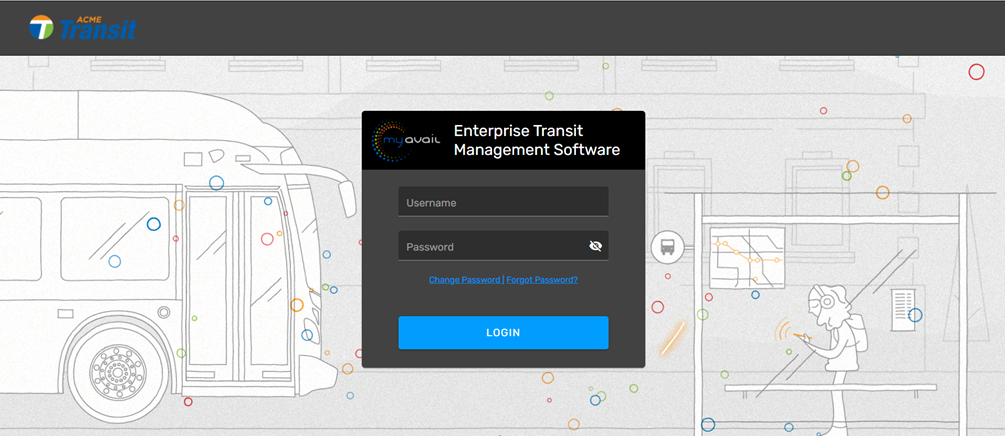
myAvail ETMS displays your Transit Agency’s logo in the upper-left corner of the screen. myAvail ETMS authenticates the user information and will display an error message when any information is missing or invalid.
Troubleshooting
If you are unable to login to ETMS, and are experiencing issues, please contact your agency system administrator, or your manager. System administrators, and others designated at your agency, can easily reset your password for you, or provide you with instructions for doing so. The process is also described below.
Password
Forgot Password
If users forget their passwords, ETMS provides a way to reset them. The recovery method can be either a single-stage or a double-stage process. Both methods prompt users to select and answer a security question at every login until a correct answer is given.
Click Forgot Password.

Enter Username.

Answer your security question, if setup, and click OK.

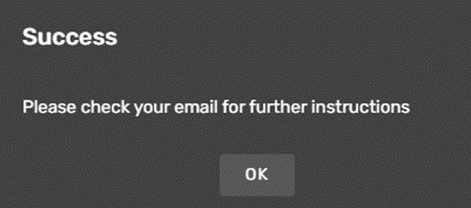
The following window prompts you to check your email for further instructions. Click OK.
Change Password
You can change your password if your agency system administrators have configured ETMS to allow it. There are two different places this can be done. To change your password, you must know your current password.
Click the Change Password option from the login screen.

To change your password, you must know your current password. The following screen displays. Fill out these fields and click Reset.

If you are already logged into ETMS, you can change your password by clicking your username drop-down and then My Profile.
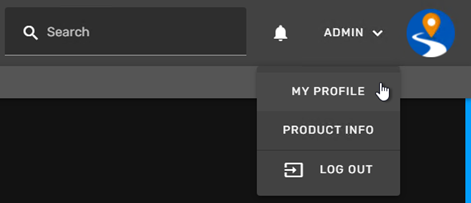
In the Settings tab of your profile, you can change your password if the system administrators have configured ETMS to allow it. To change your password, you must know your current password. Enter a new password and repeat the new password. Click Reset.
To update security questions, choose a question from the drop-down and answer. Click Reset. Refer to User Profile for more information about the User Profile page.
Log Out
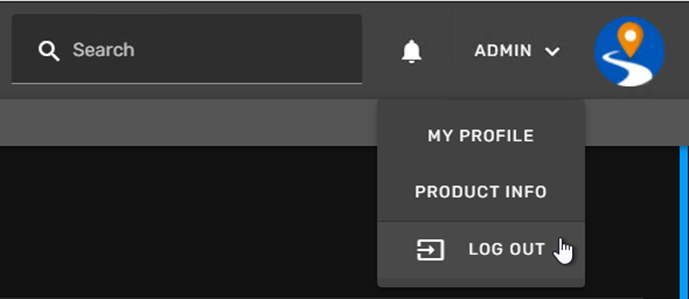
To log out, click on the Log Out button under your user drop-down.
Product Info
From the user drop-down, you also have access to product info.
The popup displays the version number. Features vary by version as well as issue resolutions. It is critical that you share the version number whenever you reach out to our support team for assistance.
Session Timeout
Users may be timed out after 30 minutes of inactivity. This is by design and based on system security. When a timeout occurs, users are not automatically logged out; instead, a re-authentication window will appear, prompting them to log back in using their password or PIN.
Users also have the option to manually log out of a timed-out session. If the re-authentication dialog remains open for 2 hours without action, the session will be automatically closed.
If users navigate using the browser's back or forward buttons while the dialog is open, the popup will remain visible, and navigation will proceed as expected.
If users refresh the browser tab while the re-authentication popup is active, they will be logged out.
If the user relaunches the window within 30 minutes of the timeout, they will be able to pick up where they left off without restarting your work. If the user tries to relaunch the form or window more than 30 minutes after the timeout, they must log back in and relaunch the desired form.
If users are using the hosted ERP solution, the virtual machine will have an additional timeout procedure. After 30 minutes of inactivity, the following system message will appear:
If the user remains inactive for two additional minutes, they will be disconnected from the virtual machine and receive this popup: